
How to Install and Configure IPTV on Any Device
Table of Contents
Introduction
Streaming television has become one of the most popular ways to enjoy entertainment at home. Traditional cable and satellite television are no longer the only options for watching live TV, movies, sports, and other programs. Today, Internet Protocol Television (IPTV) offers another way to access television content through an internet connection.
If you are new to IPTV, getting started may seem confusing. You might wonder which device to use, how to install an IPTV application, or how to configure your service correctly. Fortunately, the setup process is usually straightforward when you follow the right steps.
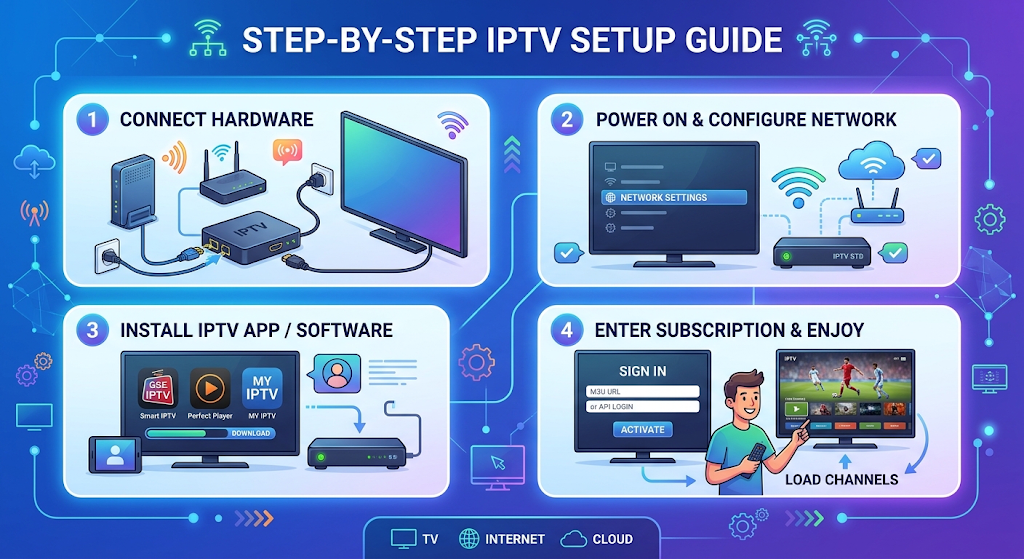
This IPTV Setup Guide explains everything you need to know, from understanding IPTV technology to installing applications and troubleshooting common problems. Whether you use a Smart TV, Android device, Fire TV device, computer, or smartphone, this guide will help you understand the setup process. A complete IPTV Setup Guide should also include troubleshooting tips to help users resolve buffering, connection, and application errors.
An IPTV Setup Guide is helpful for beginners who want to enjoy internet-based television on different devices. With the right instructions, users can easily understand the installation process and configure their preferred IPTV applications.
What Is IPTV?
IPTV stands for Internet Protocol Television. It is a technology that delivers television content through an internet connection instead of traditional cable or satellite broadcasting.
With IPTV, viewers can access different types of content depending on the service and subscription they choose. These may include live television channels, on-demand movies, television series, and other streaming programs.
How Does IPTV Work?
IPTV works by transmitting video content through internet-based networks. When you select a channel or program, the IPTV application communicates with the service provider’s system and receives the requested content.
The basic process includes:
- An IPTV provider makes authorized content available through its platform.
- The viewer connects a compatible device to the internet.
- An IPTV application accesses the service using supported login details.
- The selected program is streamed to the device.
IPTV vs Traditional Television
Traditional television usually depends on cable connections, satellite dishes, or terrestrial broadcasting. IPTV uses internet connectivity to deliver content.
Some important differences include:
- Delivery method: IPTV uses internet networks.
- Device flexibility: IPTV may work on televisions, phones, tablets, and computers.
- Content options: Depending on the service, users may access live channels and on-demand entertainment.
- Viewing experience: Streaming quality depends on internet speed, device performance, and provider infrastructure.
What Do You Need Before Setting Up IPTV?
Before beginning the installation process, make sure you have the necessary equipment and information.
1. A Stable Internet Connection
A reliable internet connection is one of the most important requirements for IPTV. Slow or unstable internet can cause buffering, freezing, and reduced video quality.
For a better experience, consider these general recommendations:
- Standard Definition (SD): Around 3–5 Mbps.
- High Definition (HD): Around 5–10 Mbps.
- Full HD: Around 10–15 Mbps.
- 4K streaming: Around 25 Mbps or higher.
These figures are general estimates for an individual stream. Actual requirements depend on video compression, network conditions, and other devices using your connection.
2. A Compatible Streaming Device
You need a device that supports your selected IPTV application.
Common compatible devices include:
- Smart TVs
- Android TV devices
- Amazon Fire TV devices
- Android smartphones
- iPhones and iPads
- Windows computers
- Mac computers
- Compatible streaming boxes
3. A Legitimate IPTV Subscription
Choose a service that has the appropriate rights and permissions to distribute its content.
Before subscribing, check its supported devices, available channels, pricing, customer support, and terms of service.
4. An IPTV Application
An IPTV application provides an interface for accessing compatible streaming services.
Some applications support playlists or provider login systems. However, an application does not automatically provide television channels or subscriptions.
IPTV Setup Guide for Different Devices
The setup process varies depending on the device you want to use. Below are general instructions for popular platforms.
How to Set Up IPTV on a Smart TV
Smart TVs are convenient because you can watch content directly on your television without connecting an additional streaming device.
Following an IPTV Setup Guide makes it easier to install compatible applications on Smart TVs. Users can follow simple steps to connect their devices and configure their authorized streaming services.
Step 1: Connect Your Smart TV to the Internet
Open your television’s network settings and connect it to your home Wi-Fi or Ethernet connection.
A wired Ethernet connection can provide greater stability when your router is nearby.
Step 2: Open the App Store
Navigate to your television’s application store.
Depending on your television brand, this may be called the Samsung Apps Store, LG Content Store, Google Play Store, or another application marketplace.
Step 3: Find a Compatible IPTV Application
Search for a reputable IPTV player that supports your television model and operating system.
Check its reviews, privacy information, and compatibility before installing it.
Step 4: Install and Open the Application
Select the application and follow the on-screen installation instructions.
Once installed, open the application to access its setup screen.
Step 5: Add Your Authorized Service Details
Follow the application’s instructions to connect your legitimate IPTV service.
Some applications support an authorized playlist, while others use a provider-supported login method.
Step 6: Start Watching
After successful configuration, browse the available content and select a program to watch.
How to Set Up IPTV on Amazon Fire TV
Amazon Fire TV devices are popular for streaming because they offer access to various entertainment applications.
Step 1: Connect Your Fire TV Device
Connect your Fire TV device to your television’s HDMI port and complete the initial setup.
Make sure it is connected to your home internet connection.
Step 2: Open the Amazon Appstore
Navigate to the Find or Search section from the Fire TV home screen.
Step 3: Search for a Compatible IPTV Player
Find an IPTV application available through the official Amazon Appstore.
Check that the application supports your device and your IPTV provider’s connection method.
Step 4: Download the Application
Select the application and choose Download or Get.
Wait until installation is complete.
Step 5: Configure Your IPTV Service
Open the application and follow its instructions to enter the connection details supplied by your authorized provider.
Step 6: Test Your Streaming Connection
Select an available channel or program and check whether the video plays smoothly.
How to Set Up IPTV on Android TV
Android TV provides access to many streaming applications through Google Play. This IPTV Setup Guide also explains how Android users can install compatible IPTV players and configure their streaming services without unnecessary complications.
Step 1: Connect to Wi-Fi
Open Settings, select Network and Internet, and connect your device to a stable network.
Step 2: Open Google Play Store
Navigate to the application marketplace from your home screen.
Step 3: Install an IPTV Player
Search for a compatible IPTV player and review its features before installing.
Step 4: Open the Application
Launch the application after installation.
Step 5: Add Your Service Information
Use the connection method supported by your provider and application.
Step 6: Check Channel Playback
Select a program and confirm that audio and video work correctly.
How to Set Up IPTV on Android Smartphones
You can also use IPTV services on compatible Android smartphones.
Step 1: Open Google Play Store
Search for a reputable IPTV player.
Step 2: Install the Application
Download an application that supports your provider’s authorized service format.
Step 3: Enter Your Login Information
Follow the application’s setup instructions to connect your service.
Step 4: Start Streaming
Browse the available content and select a program.
For a better mobile experience, use a reliable Wi-Fi connection when possible.
How to Set Up IPTV on iPhone and iPad
Apple devices can also support compatible IPTV applications.
Step 1: Open the App Store
Search for an IPTV player that is compatible with your iPhone or iPad.
Step 2: Install the Application
Review the application information and install it.
Step 3: Configure the Application
Open the player and follow its instructions to connect your authorized IPTV service.
Step 4: Test Your Connection
Play an available program to confirm that everything is working properly.
How to Set Up IPTV on a Computer
You can watch compatible IPTV services on Windows and Mac computers.
Step 1: Check Your Internet Connection
Make sure your computer has a stable internet connection.
Step 2: Choose a Compatible Player
Select a reputable application or browser-based platform supported by your provider.
Step 3: Install or Open the Player
Follow the official installation instructions if an application is required.
Step 4: Connect Your IPTV Service
Enter the authorized connection details using the supported setup method.
Step 5: Enjoy Streaming
Select a program and check its playback quality.
Understanding IPTV Playlists and Login Methods
IPTV applications may support different ways of connecting to a streaming service.
Understanding these methods makes configuration easier.
What Is an M3U Playlist?
An M3U playlist is a file or URL that contains references to media streams.
Some IPTV applications allow users to import an M3U playlist supplied by their authorized service provider.
How to Add an M3U Playlist
- Open your compatible IPTV player.
- Find the option to add a playlist.
- Select the M3U or playlist URL option.
- Enter the authorized playlist information.
- Save the configuration.
- Wait for the application to process the playlist.
What Is an Electronic Program Guide (EPG)?
An Electronic Program Guide, commonly known as EPG, displays television scheduling information.
Depending on the provider, it can show:
- Current programs
- Upcoming shows
- Program descriptions
- Broadcast schedules
- Channel information
How to Configure EPG
Open your IPTV application and locate its EPG settings.
If your provider supports an EPG source, enter the authorized information and refresh the program guide.
Best Practices for a Better IPTV Experience
A good IPTV experience depends on more than simply installing an application. Your network, device, and streaming settings also matter.
Use a Reliable Internet Connection
Choose a stable internet connection with enough bandwidth for your preferred video quality.
If possible, connect your television or streaming device directly to your router using an Ethernet cable.
Keep Your Applications Updated
Application updates can improve compatibility, performance, and security.
Enable automatic updates where appropriate or check the official application store regularly.
Restart Your Device When Necessary
If your application becomes slow or stops responding, restarting the device can sometimes resolve temporary problems.
Avoid Unnecessary Background Applications
Other applications and devices may consume bandwidth or system resources.
Close applications you are not using to help improve performance.
Protect Your Account Information
Keep your IPTV account details private.
Avoid sharing passwords, playlists, or access credentials with unknown individuals.
Common IPTV Problems and How to Fix Them
Even after completing the setup process, you may occasionally experience technical problems.
Understanding common issues can help you solve them quickly.
IPTV Buffering
Buffering occurs when video playback pauses while more data is loaded.
Possible Causes
- Slow internet connection
- Weak Wi-Fi signal
- Network congestion
- Problems with the streaming provider
- High streaming quality settings
Solutions
- Restart your router.
- Move your device closer to the Wi-Fi router.
- Use Ethernet where possible.
- Reduce video quality if supported.
- Check whether other devices are using significant bandwidth.
IPTV Application Not Opening
Sometimes an application may crash or fail to launch.
Solutions
- Restart your streaming device.
- Check for application updates.
- Clear the application cache if your device supports it.
- Reinstall the application from its official source.
- Contact the application developer if the problem continues.
IPTV Channels Not Loading
Channels may fail to load because of incorrect configuration or service interruptions.
Solutions
- Check your internet connection.
- Confirm that your subscription is active.
- Verify your login information.
- Refresh the playlist if supported.
- Contact your provider to check for service issues.
No Sound or Picture
Audio or video problems may be related to device settings or application compatibility.
Solutions
- Check your television volume.
- Confirm that the correct HDMI input is selected.
- Restart the application.
- Check audio and video settings.
- Install available device updates.
Is IPTV Legal and Safe to Use?
IPTV is a technology, and using it is not automatically illegal. Its legality depends on the content being distributed and whether the provider has the necessary broadcasting and distribution rights.
Before choosing an IPTV provider, consider the following factors:
Choose Licensed Content Providers
Use services that can demonstrate their rights to distribute the channels, movies, and programs they offer.
Check Provider Transparency
A trustworthy provider should clearly explain its business details, subscription conditions, supported devices, and customer support options.
Avoid Suspicious Offers
Be cautious of services promising thousands of premium channels at unusually low prices without explaining their licensing arrangements.
Protect Your Personal Information
Use strong passwords and avoid giving payment details to unverified websites.
Benefits of Using IPTV
IPTV offers several advantages for people who prefer internet-based entertainment.
Flexible Viewing Options
Users can access compatible services on different devices, depending on their provider’s terms.
Live Television and On-Demand Content
Some IPTV platforms combine live broadcasts with movies, series, and other on-demand programs.
Convenient Device Compatibility
Many IPTV services support multiple platforms, allowing users to choose their preferred viewing device.
Internet-Based Delivery
IPTV uses internet infrastructure, which can be convenient for households that already have a reliable broadband connection.
Tips for Choosing the Right IPTV Provider
Selecting a suitable provider is an important part of the IPTV setup process.
Consider these factors before purchasing a subscription.
Content Availability
Check whether the service legally offers the channels and programs you want to watch.
Device Compatibility
Confirm that the service supports your Smart TV, smartphone, streaming device, or computer.
Streaming Quality
Look for clear information about supported resolutions and network requirements.
Customer Support
A reliable provider should offer a clear way to contact its support team when technical problems occur.
Transparent Pricing
Review subscription costs, renewal conditions, refund policies, and any additional fees before making a purchase.
Frequently Asked Questions About IPTV Setup
1. What Do I Need to Set Up IPTV?
You generally need a compatible device, a reliable internet connection, a compatible IPTV application, and an authorized IPTV service.
2. Can I Set Up IPTV Without a Smart TV?
Yes. You can use compatible streaming devices, Android devices, smartphones, tablets, or computers to access IPTV services.
3. Does IPTV Require High-Speed Internet?
IPTV requires an internet connection capable of supporting video streaming. Higher-quality video generally requires more bandwidth.
4. Can I Use IPTV on Multiple Devices?
Some providers allow multiple devices, while others restrict the number of simultaneous connections. Always check your subscription terms.
5. Why Does IPTV Keep Buffering?
Buffering may happen because of slow internet, weak Wi-Fi signals, network congestion, device limitations, or provider-side issues.
6. What Is the Difference Between IPTV and an IPTV Player?
An IPTV service provides access to authorized streaming content, while an IPTV player is an application used to organize and play compatible streams.
7. Is IPTV Safe to Use?
IPTV can be safe when you use legitimate services, trusted applications, secure internet connections, and appropriate account protection.
Conclusion
Setting up IPTV can be a simple process when you understand the basic requirements and follow the correct instructions for your device. Whether you want to use a Smart TV, Amazon Fire TV, Android TV, smartphone, or computer, the essential steps involve connecting to the internet, installing a compatible application, and configuring an authorized streaming service.
This IPTV Setup Guide has covered the important stages, including device installation, playlist configuration, EPG settings, troubleshooting, and choosing a reliable provider.
For the best experience, always use licensed IPTV services, keep your applications updated, and maintain a stable internet connection. With the right setup, IPTV can provide a convenient and flexible way to enjoy internet-based television and entertainment. We hope this IPTV Setup Guide helps you understand the complete installation process and enjoy a smooth streaming experience.