
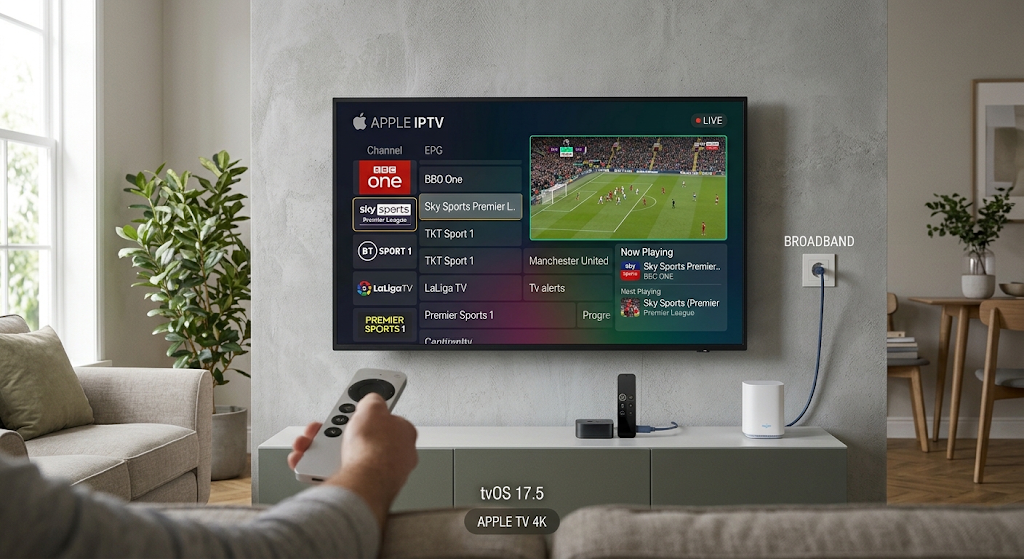
7 Best Ways to Use IPTV on Apple TV for Smooth Streaming
Apple TV has become a popular entertainment device for people who enjoy watching movies, television programmes, sports, and online videos. With its simple interface, powerful performance, and access to different streaming applications, it offers a convenient way to enjoy digital entertainment at home. Many users also want to explore IPTV on Apple TV to access live television channels and other internet-based video content.
IPTV stands for Internet Protocol Television. It allows television content to be delivered through an internet connection instead of relying entirely on traditional cable or satellite signals. Depending on the service provider, IPTV may include live channels, catch-up television, and video-on-demand content.
Using IPTV on Apple TV can provide a flexible viewing experience when you have a compatible application and a reliable internet connection. However, choosing the right app, understanding the setup process, and checking service compatibility are important steps.
This guide explains how IPTV works on Apple TV, how to set it up, which features to consider, and how to solve common streaming problems.
Table of Contents
What Is IPTV on Apple TV?
IPTV on Apple TV refers to watching television content delivered through internet protocol technology using an Apple TV streaming device.
Unlike traditional television services, IPTV sends video content over an IP network. Viewers can access supported services through compatible applications, depending on the provider’s technology and subscription requirements.
Apple TV supports a wide range of entertainment applications through the tvOS App Store. Some applications are designed specifically for IPTV playback and can work with compatible playlists or service accounts.
How Does IPTV Work on Apple TV?
IPTV works by transmitting digital video content over an internet connection. When you select a channel or programme, the application requests the relevant stream from the service provider.
The general process includes:
- An IPTV provider prepares and distributes authorised video content.
- The provider makes compatible streams or account access available.
- The viewer installs a supported IPTV player on Apple TV.
- The user enters the required service details.
- The application connects to the stream and plays the selected content.
The exact process depends on the IPTV provider and the application being used.
What Do You Need Before Getting Started?
Before setting up IPTV on Apple TV, make sure you have the following:
An Apple TV Device
You need a compatible Apple TV model that supports the IPTV application you want to install. Check the app’s requirements because not every application supports every tvOS version.
A Stable Internet Connection
A reliable broadband connection helps reduce buffering and playback interruptions. Wi-Fi can work well, but a wired Ethernet connection may provide more consistent performance on supported Apple TV models.
A Compatible IPTV Application
Choose an IPTV player available through the Apple TV App Store. Check its features, compatibility, reviews, and privacy information before installing it.
A Legitimate IPTV Subscription
If your chosen application requires an IPTV subscription, use a provider that has the appropriate rights to distribute its television channels and video content.
How to Set Up IPTV on Apple TV
Setting up IPTV on Apple TV is generally straightforward when you have a compatible application and the correct service information.
Open the Apple TV App Store
Turn on your Apple TV and navigate to the App Store from the home screen.
Use the search function to find an IPTV player that supports your requirements.
Choose a Compatible IPTV Player
Different IPTV players offer different features. Some support M3U playlists, while others may work with Xtream Codes-compatible account details or provider-specific login systems.
Before downloading an application, check:
- Compatibility with your Apple TV model.
- Supported playlist formats.
- Electronic programme guide support.
- User interface and navigation.
- Privacy policy and subscription costs.
Install the Application
Once you have selected an application, open its App Store page and choose the installation option.
Wait for the download to finish. The application should then appear on your Apple TV home screen.
Enter Your IPTV Details
Open the installed application and follow its instructions.
Depending on the player and service, you may need to enter:
- An M3U playlist URL.
- An authorised account username.
- A password.
- A server address.
- An electronic programme guide URL.
Only use the details supplied by your legitimate IPTV provider. Avoid sharing your login information with unknown websites or people.
Load Your Channels and Start Watching
After entering the correct information, allow the application to load the available content.
If your service supports live television, you may see a channel list. Some services also include categories for movies, television series, and catch-up programmes.
Select the content you want to watch and check whether playback works correctly.
Best Features to Look for in an Apple TV IPTV Player
Not every IPTV player offers the same experience. Some focus on simple playback, while others provide advanced organisation and viewing features.
Easy Navigation
An IPTV application should have a clear interface that works smoothly with the Apple TV remote.
A well-organised menu makes it easier to browse channels, find programmes, and switch between categories.
M3U Playlist Support
Some IPTV players support M3U playlists, which contain information about available media streams.
If your provider supplies an M3U playlist, check that the application supports the required format before installing it.
Electronic Programme Guide
An Electronic Programme Guide (EPG) displays programme schedules and related information.
Why Is EPG Useful?
EPG can help viewers understand what is currently showing and what programmes are scheduled next. It makes browsing live television more convenient.
Favourites and Categories
Favourites allow users to save frequently watched channels. Category features help organise available content into groups such as sports, news, movies, and entertainment.
Reliable Playback
A good IPTV player should offer stable playback and support the video formats required by your service.
Remember that the application itself does not guarantee streaming quality. Your internet connection and IPTV provider also play important roles.
Advantages of Using IPTV on Apple TV
Apple TV offers several features that can make internet-based television convenient for everyday entertainment.
Convenient Entertainment in One Place
Apple TV supports different streaming applications, allowing users to access multiple entertainment services through one device.
You can switch between compatible IPTV players and other streaming platforms without changing your television input.
Simple User Interface
The Apple TV interface is designed for remote-based navigation. Users can open applications, browse menus, and select programmes without needing a keyboard or mouse.
High-Quality Video Support
Compatible Apple TV models support high-resolution video output. However, the actual quality depends on the source stream, application, television, and internet connection.
Access to Different Content Types
Depending on the IPTV provider, users may be able to access live television, video-on-demand libraries, and catch-up content.
Integration With the Apple Ecosystem
Apple TV works alongside other Apple services and devices. Users can enjoy supported features such as AirPlay and access compatible applications through tvOS.
Internet Speed Requirements for IPTV on Apple TV
Your internet connection has a major effect on streaming quality. If the connection is slow or unstable, you may experience buffering, freezing, or lower video resolution.
The following table provides general internet speed estimates:
| Video Quality | Suggested Internet Speed |
|---|---|
| SD | 3–5 Mbps |
| HD | 5–10 Mbps |
| Full HD | 10–15 Mbps |
| 4K Ultra HD | 25 Mbps or higher |
These are general estimates rather than guaranteed requirements. Some services may require more bandwidth, especially when multiple devices use the same connection.
How to Improve Your Internet Connection
Use a Strong Wi-Fi Signal
Place your router in an open location and avoid unnecessary obstacles between the router and Apple TV.
Consider Ethernet
If your Apple TV model supports Ethernet, a wired connection may provide better stability than Wi-Fi.
Reduce Network Congestion
Pause large downloads and limit unnecessary background streaming when watching high-quality video.
Restart Your Router
Restarting your router can sometimes resolve temporary network problems and restore a stable connection.
Common IPTV Problems on Apple TV and Their Solutions
Even with a compatible application, users may occasionally experience streaming issues. Understanding common problems can help you fix them more quickly.
IPTV App Is Not Opening
If the IPTV application does not open, try these steps:
- Close the application and open it again.
- Restart your Apple TV.
- Check for tvOS updates.
- Check whether the application has an available update.
- Reinstall the application if the problem continues.
IPTV Channels Are Not Loading
Channels may fail to load because of incorrect playlist information, provider downtime, or network problems.
Possible Solutions
Check your playlist URL or login information. Make sure your subscription is active and contact the provider if the service is unavailable.
Buffering During Playback
Buffering usually occurs when video data cannot reach the device quickly enough.
Try moving Apple TV closer to your router, using Ethernet where supported, or reducing network congestion.
Poor Picture Quality
Low-quality video may result from a weak connection or a low-resolution source stream.
Check the stream’s available resolution and make sure your internet connection can support it.
Login or Authentication Errors
If you receive an authentication error, carefully check your account information.
Some providers limit the number of devices or connections allowed under a subscription. Contact the provider if your details are correct but access is still unavailable.
IPTV on Apple TV vs Other Streaming Devices
Apple TV is not the only device that supports internet-based entertainment. Android TV devices, Fire TV products, and Smart TVs also offer access to compatible streaming applications.
Apple TV
Apple TV is known for its smooth interface, integration with Apple services, and support for a wide range of entertainment applications.
Android TV
Android TV devices offer access to the Google Play ecosystem and a variety of compatible streaming applications.
Amazon Fire TV
Fire TV devices provide an affordable way to access supported streaming applications and digital entertainment services.
Smart TVs
Many modern Smart TVs include built-in application stores. Their IPTV compatibility depends on the television operating system and available applications.
The best device depends on your budget, preferred interface, application compatibility, and entertainment requirements.
Is IPTV on Apple TV Legal?
IPTV technology itself is legal. It is simply a method of delivering television content through internet protocol networks.
However, the legality of a particular IPTV service depends on whether it has permission to distribute the content it offers.
Before purchasing a subscription, consider these important points:
- Choose a provider with clear business information.
- Check whether the service has appropriate content distribution rights.
- Avoid suspicious offers that advertise premium channels at unrealistic prices.
- Use official applications from trusted sources.
- Review subscription terms and cancellation policies.
- Protect your personal and payment information.
A legitimate service should provide clear information about its content, pricing, and customer support.
Tips for Getting the Best IPTV Experience on Apple TV
A few simple practices can help improve your viewing experience.
Keep Apple TV Updated
Install available tvOS updates to benefit from security improvements, compatibility updates, and performance fixes.
Choose a Reliable IPTV Provider
A reliable provider should offer properly licensed content, transparent subscription details, and responsive customer support.
Use Compatible Applications
Always check application requirements before installation. A player that supports your provider’s playlist format can make setup much easier.
Manage Your Network
Avoid running unnecessary downloads or bandwidth-heavy activities while streaming.
Check Application Reviews
Read recent user reviews to understand application performance, usability, and possible limitations.
Frequently Asked Questions About IPTV on Apple TV
Can You Get IPTV on Apple TV?
Yes. You can use IPTV on Apple TV through compatible applications available in the tvOS App Store. Availability depends on the application, device model, and service provider.
Does Apple TV Support M3U Playlists?
Some IPTV applications for Apple TV support M3U playlists. Check the application’s official description to confirm supported formats.
Do I Need an IPTV Subscription?
An IPTV player may be available as a free download, but accessing subscription-based television content generally requires a valid account or playlist from an authorised provider.
Can I Watch Live TV on Apple TV?
Yes. You can watch live television through compatible applications and services that have permission to distribute the channels.
Does IPTV Work on Apple TV 4K?
Many IPTV applications support compatible Apple TV 4K models. However, you should check the application’s minimum tvOS requirements and supported device list.
Why Does IPTV Keep Buffering on Apple TV?
Buffering can occur because of slow internet, weak Wi-Fi, provider-side issues, or network congestion. Checking your connection and restarting your router may help.
Can I Use IPTV and Netflix on the Same Apple TV?
Yes. Apple TV supports multiple applications, so you can use a compatible IPTV player alongside Netflix and other streaming platforms.
Conclusion
Using IPTV on Apple TV can provide a convenient way to enjoy live television and other internet-based video content. With a compatible IPTV application, a reliable internet connection, and a legitimate content provider, users can create a flexible entertainment experience at home.
The setup process usually involves downloading a suitable player, entering the required service details, and loading the available channels or programmes. Choosing an application with useful features, keeping your device updated, and maintaining a stable internet connection can also improve playback.
Before selecting an IPTV service, always check its compatibility, subscription terms, customer support, and content distribution rights. By making an informed choice, you can enjoy a smoother and more secure streaming experience on your Apple TV.