
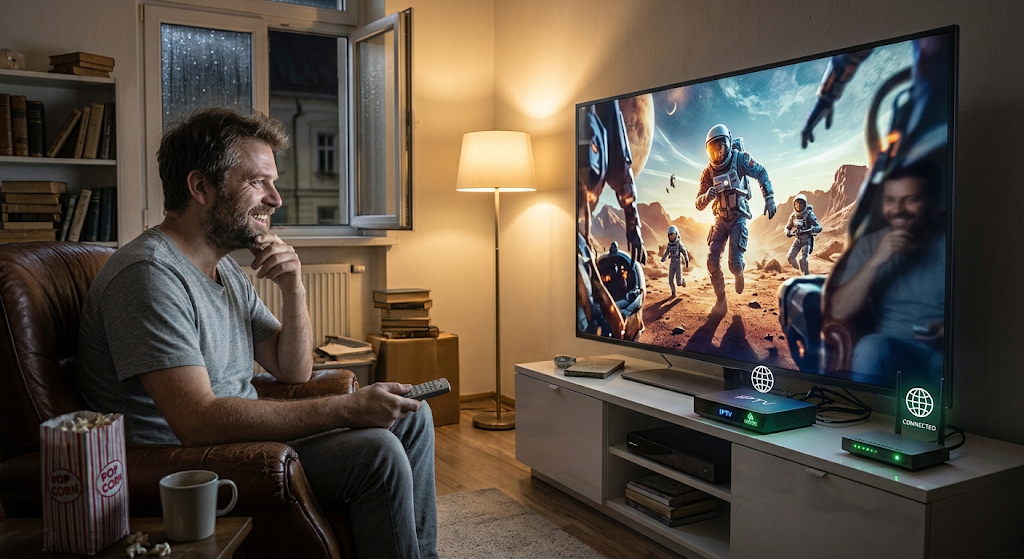
10 Easy Ways to Fix IPTV Connection Problems and Restore Smooth Streaming
Internet-based television has become a popular entertainment option for people who want to watch live channels, movies, sports, and other programmes through an internet connection. IPTV provides flexibility because users can access compatible services on Smart TVs, smartphones, tablets, computers, and streaming devices.
However, like other internet-based services, IPTV can sometimes experience technical difficulties. IPTV connection problems can prevent channels from loading, interrupt live streaming, cause buffering, or display error messages when users try to open their favourite content.
These issues can be frustrating, especially when you are watching an important live programme. Fortunately, many connection problems can be identified and resolved by checking your internet connection, restarting your equipment, updating applications, and reviewing your device settings.
In this guide, we will explore the most common IPTV connection problems, explain why they happen, and share practical solutions to help you enjoy a more reliable streaming experience.
Table of Contents
H2: What Are IPTV Connection Problems?
IPTV connection problems occur when your streaming device cannot establish or maintain a reliable connection with an IPTV application or content service.
These problems can affect different parts of the streaming process. Sometimes the application opens but channels do not load. In other situations, the service may disconnect repeatedly or display a network-related error.
The cause can be related to your internet provider, home network, streaming device, application, or the IPTV service itself.
H3: Common Signs of IPTV Connection Problems
You may notice several symptoms when your IPTV connection is not working properly.
Common signs include:
- IPTV channels are not loading.
- The application displays a connection error.
- Live television keeps disconnecting.
- Video playback repeatedly buffers.
- The IPTV application cannot connect to the server.
- Some channels work while others remain unavailable.
- The service stops working after a short period.
- Login or authentication errors appear.
Identifying the exact symptom can help you find the correct solution more quickly.
H3: Connection Problems vs Buffering Problems
Connection problems and buffering problems are related, but they are not identical.
A connection problem occurs when the device cannot properly communicate with the streaming service. Buffering happens when the application does not receive video data quickly enough to continue playback smoothly.
For example, an unstable Wi-Fi connection may cause both connection errors and buffering. However, a server interruption may prevent a channel from loading even when your home internet is working correctly.
H2: 10 Common Causes of IPTV Connection Problems
Before attempting to fix an issue, it is important to understand what may be causing it.
H3: 1. Weak Internet Connection
A weak internet connection is one of the most common reasons IPTV services fail to connect properly.
Streaming applications require a consistent internet connection to receive video data. If your connection frequently drops or becomes unstable, your IPTV application may disconnect.
H4: How to Identify a Weak Connection
You may notice that websites load slowly, other streaming applications also experience problems, or your IPTV service works better when you move closer to the router.
Run an internet speed test and check whether your connection remains stable.
H3: 2. Wi-Fi Signal Problems
A router may provide good internet speed, but a weak wireless signal can still cause connection difficulties.
Walls, floors, furniture, and interference from other wireless devices can affect Wi-Fi performance.
H4: How to Improve Wi-Fi Signals
- Move your streaming device closer to the router.
- Place your router in an open location.
- Avoid placing the router behind large objects.
- Restart your wireless router.
- Use the appropriate Wi-Fi frequency band for your device.
- Consider Ethernet for stationary streaming equipment.
H3: 3. IPTV Server Downtime
Sometimes the issue is not related to your internet connection or streaming device.
An IPTV service may experience temporary downtime because of maintenance, technical faults, network interruptions, or server overload.
When this happens, several channels may become unavailable at the same time.
H4: What Should You Do?
Check the provider’s official service updates or contact its support team.
If other websites and applications work normally but your IPTV service remains unavailable, the issue may be on the provider’s side.
H3: 4. Incorrect Login Details
Some IPTV applications require account information or authorised service configuration details.
Incorrect login credentials, expired subscriptions, or authentication errors may prevent the application from connecting.
H4: Check Your Account Information
Carefully review your login details and check whether your subscription is active.
Avoid repeatedly entering incorrect information. If the details appear correct but the issue continues, contact your provider.
H3: 5. Outdated IPTV Application
An outdated application may contain bugs or compatibility problems.
Developers regularly release updates to improve application stability, fix technical issues, and support newer operating systems.
H4: How to Update Your Application
- Open the official application store.
- Search for your IPTV application.
- Check whether a new version is available.
- Install the update.
- Restart the application.
- Test your connection again.
Only download applications from trusted sources.
H3: 6. Router Configuration Issues
Incorrect router settings may interfere with communication between your streaming device and online services.
For example, certain firewall restrictions, network filters, or DNS configuration problems can affect connectivity.
H4: Check Your Router Settings
Restart your router and check whether its firmware needs updating.
If you suspect a configuration issue, consult your router manufacturer’s instructions or contact your internet provider before changing advanced settings.
H3: 7. Device Software Problems
Your Smart TV, Android TV box, smartphone, or streaming stick may require a software update.
Outdated operating systems can sometimes create compatibility problems with modern applications.
H4: Keep Your Device Updated
Open your device settings and look for the system update option.
Install available updates using the manufacturer’s official process. Make sure the device has sufficient battery or power during installation.
H3: 8. DNS or Network Resolution Problems
DNS helps devices locate online services using domain names.
If DNS resolution is not working correctly, an application may struggle to connect to its service even when your device appears to be connected to the internet.
H4: Possible Solutions
Restart your router and device first. If the issue continues, consult your internet provider about DNS settings.
Do not change advanced network settings unless you understand their purpose or have reliable instructions.
H3: 9. Too Many Connected Devices
Several devices using the same internet connection can increase network demand.
Online gaming, large downloads, video calls, and multiple high-quality streams may compete for available bandwidth.
H4: Reduce Network Congestion
Pause unnecessary downloads and disconnect devices that are not being used.
If several people regularly stream content at the same time, consider whether your internet package provides enough bandwidth for your household.
H3: 10. Device Storage or Memory Limitations
Streaming devices need sufficient memory and storage to run applications correctly.
Older devices or equipment with limited resources may become slow, crash, or experience application connection errors.
H4: Improve Device Performance
Remove unnecessary applications, clear temporary cache files where supported, and restart your device.
If connection problems occur across several applications, your device may need maintenance or replacement.
H2: 10 Easy Ways to Fix IPTV Connection Problems
Once you understand the possible causes, you can start troubleshooting.
H3: 1. Check Your Internet Connection
First, confirm that your device is connected to the internet.
Open a trusted website or another streaming application. If nothing works, the problem may be related to your home internet connection.
You can also run a speed test to check your download speed and connection stability.
H3: 2. Restart Your Router
Restarting your router can resolve temporary network problems.
Follow these steps:
- Turn off your router.
- Disconnect its power cable.
- Wait approximately 30 seconds.
- Reconnect the power cable.
- Wait for the internet connection to return.
- Open your IPTV application and test it again.
This simple step can sometimes restore a connection without requiring additional changes.
H3: 3. Restart Your Streaming Device
Temporary software problems can prevent an IPTV application from connecting correctly.
Turn off your Smart TV, streaming stick, or Android device. Wait briefly, restart it, and try opening the application again.
H3: 4. Use an Ethernet Connection
If you are using Wi-Fi, try connecting your television or streaming box directly to the router through an Ethernet cable.
A wired connection can reduce wireless interference and provide more consistent network performance.
This is particularly useful for devices that remain in one location.
H3: 5. Update the IPTV Application
Check whether your IPTV application has a new version.
An update may fix known connection errors, improve compatibility, and resolve software bugs.
Always use official application stores or trusted developer sources.
H3: 6. Clear the Application Cache
Temporary application files can sometimes become corrupted.
On supported Android devices, open Settings, select Apps, choose your IPTV application, and select Clear Cache.
Be careful when choosing Clear Data because this may remove saved settings and login details.
H3: 7. Check Your Subscription Status
An expired or inactive subscription may prevent access to the service.
Open your provider’s official account page or contact customer support to confirm that your subscription is active and your account is working correctly.
H3: 8. Test Another Channel
If one channel does not load, try another available channel.
If other channels work normally, the problem may be limited to the individual stream rather than your overall connection.
Report the affected channel to your provider if it continues to fail.
H3: 9. Review Device Network Settings
Check that your device is connected to the correct Wi-Fi network and has valid network settings.
If you recently changed router or DNS settings, consider whether those changes caused the problem.
Follow the manufacturer’s guidance when making adjustments.
H3: 10. Contact Your IPTV Provider
If none of the previous solutions work, contact your provider through its official support channel.
Explain the error message, the device you are using, and when the connection problem started.
The provider may be able to identify server downtime, account restrictions, or service-side faults.
H2: IPTV Connection Problems on Different Devices
Different devices can experience different types of connectivity issues. Understanding the device-specific causes can make troubleshooting easier.
H3: IPTV Connection Problems on Smart TV
Smart TVs sometimes experience network problems because of outdated software, weak Wi-Fi signals, or application compatibility issues.
Try restarting the television, checking its network settings, and updating the software.
If possible, connect the TV through Ethernet to compare performance.
H3: IPTV Connection Problems on Fire TV Stick
Fire TV devices may experience connectivity problems when their applications are outdated or the wireless connection is unstable.
Restart the Fire TV device, check for system updates, and clear the application cache where appropriate.
H3: IPTV Connection Problems on Android TV Box
Android TV boxes can experience connection problems because of outdated software, incorrect network settings, or limited hardware resources.
Check the Wi-Fi connection, restart the device, and update compatible applications.
H3: IPTV Connection Problems on Smartphones
Mobile devices may disconnect when switching between Wi-Fi and mobile data.
Check your network settings, update the application, and make sure battery-saving features are not unnecessarily restricting network activity.
H3: IPTV Connection Problems on Computers
Computers may experience problems because of outdated browsers, firewall settings, or network configuration issues.
Update your browser, restart the computer, and check whether other online services are working correctly.
H2: Best Internet Requirements for Reliable IPTV Connections
A stable internet connection is essential for reliable streaming.
The amount of bandwidth you need depends on video quality, the number of simultaneous streams, and other activities taking place on your network.
H3: Suggested Internet Speeds
The following figures are general estimates rather than guaranteed requirements.
| Streaming Quality | Suggested Speed Per Stream |
|---|---|
| SD | 3–5 Mbps |
| HD | 5–10 Mbps |
| Full HD | 10–15 Mbps |
| 4K Ultra HD | 25 Mbps or more |
If multiple devices stream at the same time, you need additional available bandwidth.
H3: Why Connection Stability Matters
Speed is only one part of internet performance.
Other important factors include:
- Low packet loss.
- Consistent download speeds.
- Stable Wi-Fi signals.
- Reliable router performance.
- Low network congestion.
A stable connection can provide better streaming results than a faster connection that frequently disconnects.
H2: How to Prevent IPTV Connection Problems in the Future
Regular maintenance can help reduce the chances of experiencing repeated connectivity issues.
H3: Keep Your Router in a Suitable Location
Place your router in a central, open area where wireless signals can reach your streaming devices.
Avoid hiding it inside cabinets or placing it behind large objects.
H3: Update Your Applications and Devices
Install software updates from trusted sources.
Updates can improve security, fix compatibility problems, and help applications operate correctly.
H3: Monitor Your Internet Usage
Avoid running unnecessary downloads during important streaming sessions.
If several household members use the internet simultaneously, monitor whether your connection can handle the combined demand.
H3: Choose a Reliable and Legal IPTV Service
Before subscribing to an IPTV service, check its content distribution rights, service terms, supported devices, customer support, and subscription conditions.
Avoid providers that make unrealistic promises or offer unclear information about their content sources.
H2: Frequently Asked Questions About IPTV Connection Problems
H3: 1. Why Is My IPTV Not Connecting?
Your IPTV may not connect because of an unstable internet connection, incorrect login details, an outdated application, server downtime, or network configuration problems.
H3: 2. Can a Router Cause IPTV Connection Problems?
Yes. Router problems, weak Wi-Fi signals, outdated firmware, and incorrect network settings can interrupt IPTV connectivity.
H3: 3. Why Does IPTV Work on One Device but Not Another?
The devices may have different application versions, operating systems, network settings, or compatibility requirements. Check the affected device first.
H3: 4. Can DNS Problems Affect IPTV?
Yes. DNS issues can prevent a device from locating an online service correctly. Restarting your router and consulting your internet provider may help.
H3: 5. Does Ethernet Improve IPTV Connectivity?
Ethernet can provide a more stable connection than Wi-Fi for stationary streaming devices, especially when wireless interference is a problem.
H3: 6. Why Do Some IPTV Channels Work While Others Do Not?
The problem may be related to individual streams, temporary provider issues, or content availability. Test other channels and contact your provider if necessary.
H3: 7. Can an Expired Subscription Cause Connection Errors?
Yes. Some services restrict access when a subscription expires or an account becomes inactive. Check your account status with the provider.
H3: 8. Should I Reset My Router to Fix IPTV Problems?
A normal restart is a good first step. A factory reset is different and removes customised router settings, so only use it when necessary and after consulting the manufacturer’s instructions.
H2: Conclusion
IPTV connection problems can interrupt entertainment and make it difficult to enjoy live television or other streaming content. However, many issues can be resolved through simple troubleshooting methods.
Start by checking your internet connection, restarting your router and streaming device, updating your applications, and reviewing your subscription status. If the issue affects only specific channels or continues across multiple devices, contact your provider for further assistance.
Using compatible devices, maintaining a stable network, and choosing a legitimate IPTV service can also help reduce recurring connection problems.
With the right setup and regular maintenance, you can enjoy a more reliable and convenient IPTV streaming experience.